 SnapNeo
Free text OCR runs on your device
Optical character recognition (OCR) converts image text that you cannot select into editable text. SnapNeo includes its text recognition models and works offline without Pro, an account, or a translation service. Use it for ordinary text in webpage screenshots, document photos, or other apps.
Make the text readable first: enlarge the source if needed and avoid obscured or clipped characters. On macOS, allow screen recording before capturing the screen; quit and reopen SnapNeo if the system prompts you to after granting access. The shortcuts below are defaults and can be changed in Settings.
Method 1: select an area and paste the text
- On Windows, press Ctrl + Alt + X. On Mac, press Control + Command + X (⌃⌘X) to start quick text extraction.
- Drag over the text you need and release, then wait for recognition to finish. Select only the relevant area to avoid mixing in other windows or unrelated paragraphs.
- By default, a nonempty result is copied to the clipboard. Switch to a document, email, or another text field, then paste with Ctrl + V on Windows or Command + V on Mac and check the result.
Change the completion action under Settings → Recognition → Text recognition. If the result is not copied automatically, check that setting or use the viewer method below to inspect it. When no text is found, an empty result does not replace your existing clipboard contents.
Method 2: select, review, and copy in the viewer
- Capture an area with Ctrl + Alt + S on Windows or Control + Command + S on Mac, then click “Recognize text and view” on the toolbar. The viewer opens the image and shows the text results panel on the right.
- For part of the text, drag to select it on the image, then copy with Ctrl + C on Windows or Command + C on Mac.
- For the full text, compare the right-hand result with the image, edit any errors, then use the button to copy all text. Recognition uses text positions to reconstruct reading order and retain line breaks, but complex layouts still need checking.
You can also open an existing local image in the viewer and click “Recognize text”, without taking another screenshot of it. Long scrolling screenshots can be recognized in the viewer too.
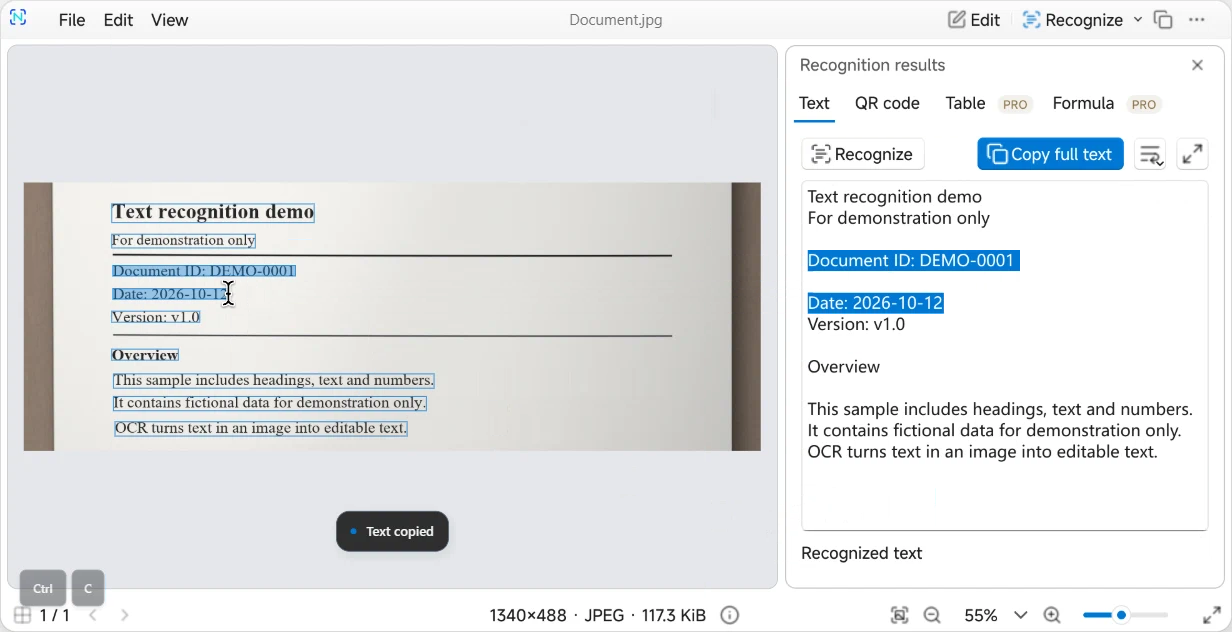
This animation uses a fictional demonstration document and a preset transcription to illustrate the workflow. It does not run OCR or measure accuracy or processing time. The animation shows Ctrl+C; use Command+C to copy on Mac.
What if text is missing, incorrect, or slow to appear?
- No text found: check that the selected area contains complete, readable characters. Enlarge the source content or use a clearer image and retry. Enlarging an already blurred image may not recover its detail.
- Recognition failed: check the result panel status and retry. First-time recognition and large images may take longer; a waiting message does not itself mean failure.
- Wrong characters or reading order: edit the result on the right before copying. Compare names, amounts, dates, and identifiers with the original; review important content before using it.
- Line breaks do not suit the destination: use the formatting menu beside the copy-all button to merge paragraph line breaks, merge all line breaks, or remove extra blank lines, then check the paragraph structure.
How text OCR differs from translation, tables, and formulas
Text OCR processes images locally. When you request image translation, the app sends the recognized text over the internet to your configured provider. The source image stays on your device.
Ordinary text OCR does not preserve spreadsheet cells or produce mathematical notation. Table editing and export, and formula recognition, are Pro features. Pro purchases and licensing currently support only the Windows Microsoft Store edition. Formula recognition also needs a separately installed model.